UAS And UAQ Radio Enhancements (08-111-17)
Reference number: 08-111-17
UAS AND UAQ RADIO ENHANCEMENTS
TECHNICAL SERVICE BULLETIN
| CHRYSLER: | 2018 (LA) Dodge Challenger, (LD) Dodge Charger, (LX) Chrysler 300, (WD) Dodge Durango, (WK) Grand Cherokee, (DS) RAM 1500 Pickup |
| GROUP: | 08 - Electrical |
SUBJECT
UAS and UAQ Radio Enhancements
OVERVIEW
This bulletin involves inspecting and if required, updating the radio software.
MODELS
| 2018 | (LA) | Dodge Challenger |
| 2018 | (LD) | Dodge Charger |
| 2018 | (LX) | Chrysler 300 |
| 2018 | (WD) | Dodge Durango |
| 2018 | (WK) | Grand Cherokee |
| 2018 | (DS) | RAM 1500 Pickup |
This bulletin applies to WD and WK vehicles built on or before October 11, 2017 (MDH 1011XX) equipped with Uconnect 8.4 navigation radio (Sales Codes UAQ).
This bulletin applies to DS vehicles built on or before October 06, 2017 (MDH 1006XX) equipped with an Uconnect 8.4 navigation radio (Sales Codes UAQ) or a Uconnect 8.4 radio (Sales Code UAS).
SYMPTOM/CONDITION
Customers may experience one or more of the following:
- Radio control screen is blank or locked.
- Radio may reset at times.
- Bluetooth® devices unresponsive.
- Unable to adjust audio volume.
- Radio will not switch modes, between AM, FM, SAT or Media.
DIAGNOSIS
Using a Scan Tool (wiTECH) with the appropriate Diagnostic Procedures available in TechCONNECT, verify all related systems are functioning as designed. If DTCs or symptom conditions, other than the ones listed above are present, record the issues on the repair order and repair as necessary before proceeding further with this bulletin.
If the customer describes the symptom/condition listed above, perform the REPAIR PROCEDURE .
REPAIR PROCEDURE
- Has a 16GB
USB flash drive been created?
- YES >>> Proceed to Step 10.
- NO >>> Proceed to Step 2.
NOTE: When downloading the navigation software file equipped with a Uconnect 8.4 navigation radio (Sales Code UAQ), always select the MAC version, regardless of the computer being used. - Go to DealerCONNECT>Service>Uconnect Command Center>Uconnect>More Information >Dealer software downloads to download the files.
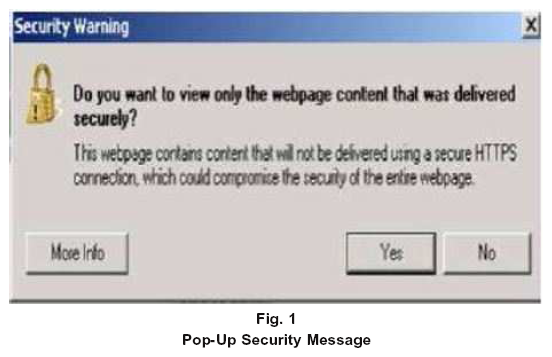
- If a security message appears "Do you want to view only the web page content that was delivered securely?" (Fig. 1)
. Press "No" to continue.NOTE: If the software cannot be downloaded, make sure you have proper security access. If not, have the Service Manager or Shop Foreman download the software update.
- Use a blank USB flash drive with at least 16GB of space. Follow the on-screen instructions to download the software files.
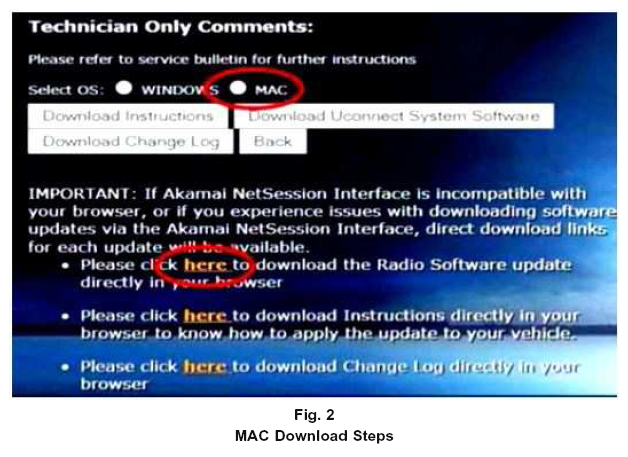
- Download the software update file to your local PC's desktop. Make sure to select the "MAC" radial button for all downloads (Fig. 2)
.
- Be sure to download the file to your designated folder before extracting the zip file to the blank USB flash drive.
- A blank USB flash drive will be needed for each radio update, additional updates can not be on the same USB flash drive.
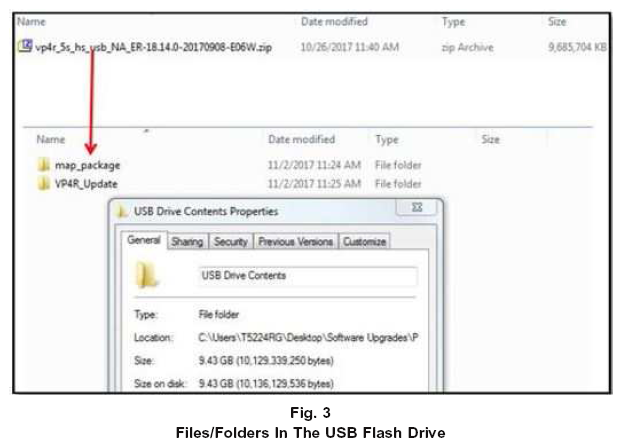
- Unzip all the files to the root folder of USB flash drive. Files should not be within a zip folder. Your USB files should look like (Fig. 3)
when you open it, displaying multiple files/folders.
- Once the file is extracted to the USB flash drive, it is recommended to label the USB flash drive with the bulletin number and proper radio Sales Codes.
- Start the vehicle and insert the correct USB flash drive with new software into the USB port.CAUTION: Make sure no other device is plugged into any of the USB ports while performing this re-program. If other devices are connected to USB ports during re-programming, it may cause failure of files to be loaded which may cause the radio to need replacement.NOTE: This software will update the radio to, version 18.14
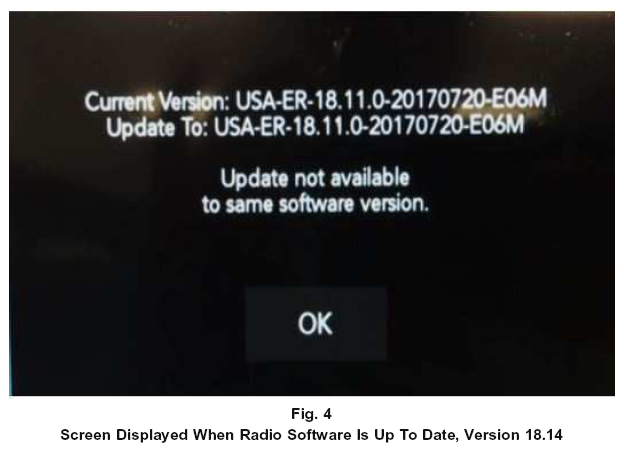
- If the radio software is up to date, the screen in (Fig. 4)
will be displayed. Press "OK" and remove the USB flash drive.
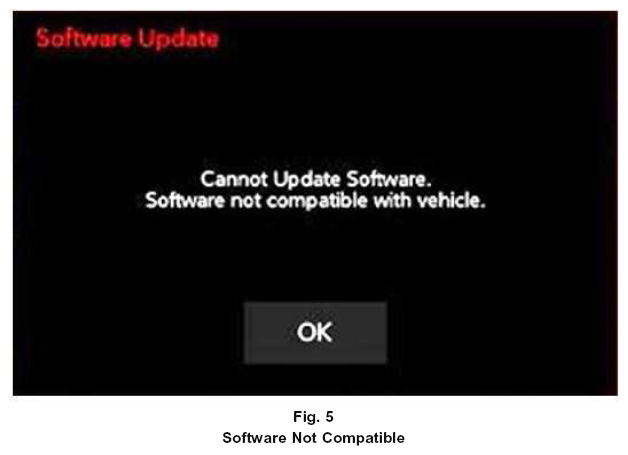
- If the screen in (Fig. 5)
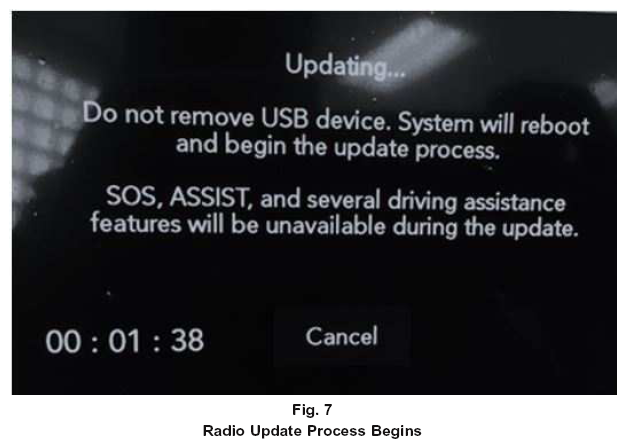
is displayed, the USB flash drive was not set up correctly. Use name brand USB and create a new flash drive and start the update again.NOTE: Do not turn off the ignition until the two minute timer has expired, as seen in (Fig. 7) .
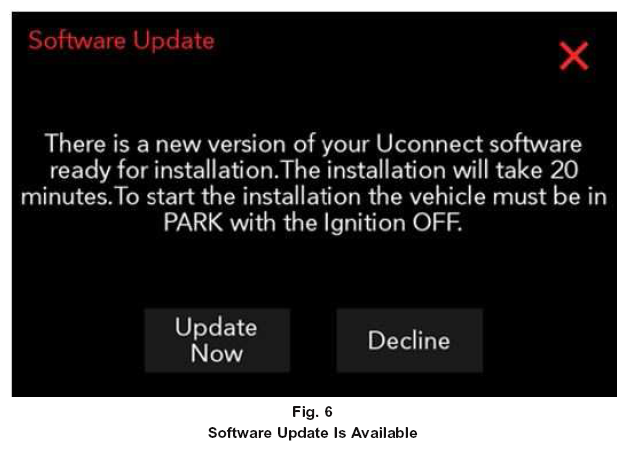
- Once the system has verified there is an available update, touch the "Update Now" button. Make sure the vehicle is in park, do NOT turn off the ignition at this point,
see (Fig. 6)
.
- The ignition must be turned to the off position after the two minute timer has expired, or the update will be canceled, see (Fig. 7)
.
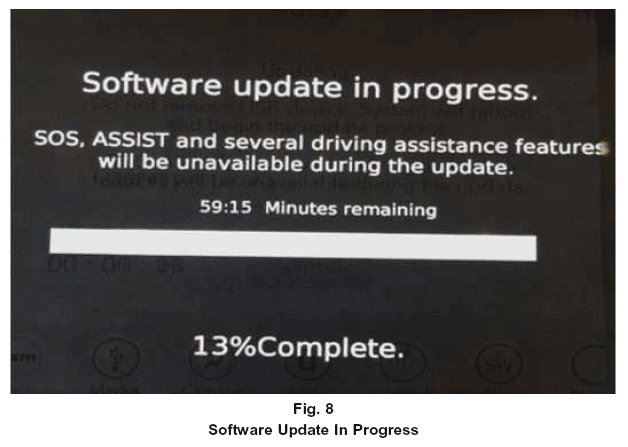
- The radio will reboot and the update will begin. The update should only take 20 minutes, the timer on the screen may display the incorrect time remaining, see (Fig. 8)
.
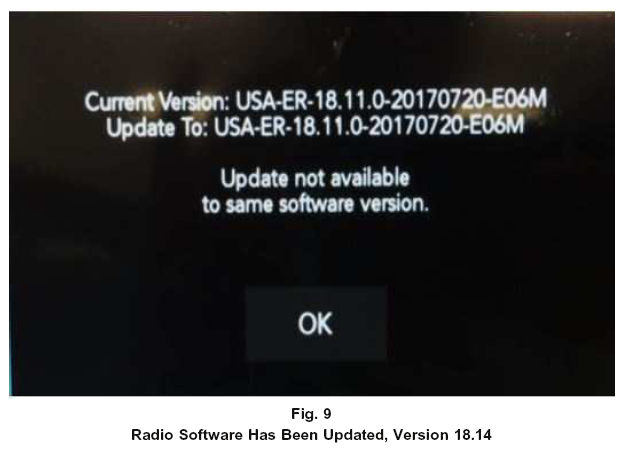
- After the update has completed, the radio will shut down. With the USB flash drive still inserted in the USB port, turn the ignition back to the run position. If the radio has been updated correctly, the screen in (Fig. 9)
will be displayed. Press "OK" and remove the USB flash drive.
POLICY
Reimbursable within the provisions of the warranty.
TIME ALLOWANCE
| Labor Operation No: | Description | Skill Category | Amount |
|---|---|---|---|
| 18-60-02-QB | Radio, Check Software Level and Perform Software Update (Sales Code UAS or UAQ) (0 - Introduction) |
6 - Electrical and Body Systems | 0.5 Hrs. |
| 18-60-02-QC | Radio, Software - Create USB Flash Drive (Sales code UAS) (One Time Only) (0 - Introduction) |
6 - Electrical and Body Systems | 0.2 Hrs. |
| 18-60-02-QD | Radio, Software - Create USB Flash Drive (Sales code UAQ) (One Time Only) (0 - Introduction) |
6 - Electrical and Body Systems | 1.1 Hrs. |
FAILURE CODE
The dealer must use failure code CC with this Service Bulletin.
- If the customer's concern matches the SYMPTOM/CONDITION identified in the Service Bulletin, failure code CC is to be used.
- When utilizing this failure code the 3C's (customer's concern, cause and correction) must be provided for processing Service Bulletin flash/reprogramming conditions.
| CC | Customer Concern |