RA3 And RA4 Radio Enhancements (08-058-18)
WARNING: This page is about the Charger GT, which is a different variant/trim than selected.
Publication date: 2018-05-01Reference number: 08-058-18
RA3 AND RA4 RADIO ENHANCEMENTS
TECHNICAL SERVICE BULLETIN
Reference Number(s): 08-058-18, Date of Issue:
May 1, 2018
| CHRYSLER: | 2018 Jeep Cherokee (KL), Dodge Charger (LD) |
| GROUP: | 08 - Electrical |
NOTE:
THE wiTECH SOFTWARE IS REQUIRED TO BE AT THE LATEST RELEASE BEFORE PERFORMING THIS PROCEDURE.
SUBJECT
RA3 and RA4 Radio Enhancements
OVERVIEW
This bulletin involves inspecting and if required, updating the radio software.
MODELS
MODELS CHART
| 2018 | (KL) | Jeep Cherokee |
| 2018 | (LD) | Dodge Charger |
NOTE:
This bulletin applies to vehicles within the following markets/countries: NAFTA.
NOTE:
This bulletin applies to KL vehicles equipped with Uconnect 8.4 (Sales Code RA3) or Uconnect 8.4AN (Sales Code RA4).
NOTE:
This bulletin applies to LD vehicles built on or before April 30, 2018 (MDH 0430XX) equipped with Police Group (Sales Code AHB) and Uconnect 8.4 (Sales Code RA3) or Uconnect 8.4AN (Sales Code RA4).
SYMPTOM/CONDITION
Customers may experience one or more of the following:
- Incoming phone calls do not display name, only number.
- Cluster units intermittently change from US to Metric.
DIAGNOSIS
Using a Scan Tool (wiTECH) with the appropriate Diagnostic Procedures available in TechCONNECT, verify all related systems are functioning as designed. If Diagnostic Trouble Codes (DTCs) or symptom conditions, other than the ones listed above are present, record the issues on the repair order and repair as necessary before proceeding further with this bulletin.
If the customer describes the symptom/condition listed above, perform the REPAIR PROCEDURE .
REPAIR PROCEDURE
NOTE:
This software update is only compatible with the 2018 model year vehicles listed.
NOTE:
The swdl.upd file will be loaded onto the USB flash drive.
NOTE:
Updating the radio's software may cause the radio to reset back to factory default setting. The customer should be advised that they may need reset the personal settings, theme, color, presets, favorites and the phones may need to be paired again.
- Has a USB flash drive been created?
- YES >>> Proceed to Step 5.
- NO >>> Proceed to Step 2.
- Go to DealerCONNECT> Service> Uconnect Command Center> Uconnect> Dealer software downloads to download the files.
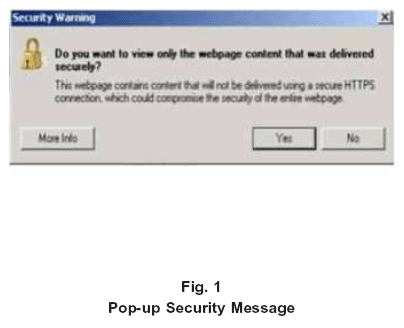
- If a security message appears "Do you want to view only the webpage content that was delivered securely?" (Fig. 1)
Press "No" to continue.NOTE: A blank USB flash drive must be used to download the software. Only one software update can be used on one USB flash drive.NOTE: If the software cannot be downloaded, make sure you have proper security access. If not, have the Service Manager or Shop Foreman download the software update.
- To download the software files to a USB flash drive, follow the on screen instructions and perform the following:
- Acquire a blank USB flash drive with at least 4 GB of space.
- Download the software update file to your local PC's desktop.
- Be sure to extract the file before copying it to the blank USB flash drive.
- A blank USB flash drive will be needed one for each radio update, additional updates can not be on the same USB flash drive.
- Once the file is saved to the USB flash drive, it is recommended you physically label the USB flash drive with the bulletin number and proper radio sales codes.
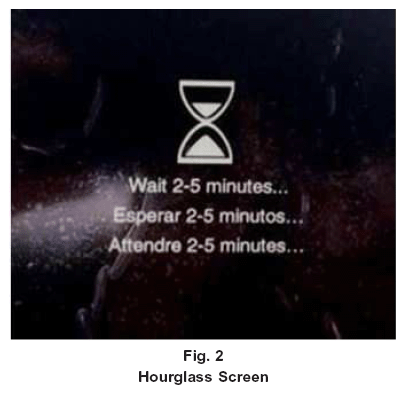
NOTE: The engine should be running and radio powered on during the update.NOTE: During the update process you may see multiple hourglass screens for extended periods of time (several minutes) (Fig. 2) . DO NOT remove the USB flash drive at this time. Only remove the USB flash drive when the update has completed, when the screen displays the software levels again. - Insert the correct USB flash drive with new software into USB port.
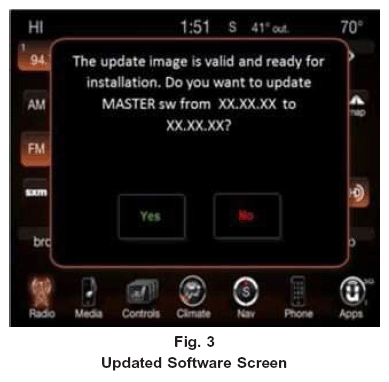
- The next screen display will have the old and new software levels. The radio will be updated to 17.43.01.
- Is the radio at software level 17.43.01 or higher?
- YES >>> The radio software is already up to date. Normal diagnostics need to be performed.
- NO >>> The radio software needs to be updated. Proceed to Step 8.
NOTE: If the radio software level is at or above the level on the USB flash drive, DO NOT perform the update. - Press the soft key "Yes" to start the update.NOTE: DO NOT cycle the ignition or touch the radio during the update process.NOTE: If the software update process is interrupted, aborted or failed, the process should be restarted. See Star Online Cases if the radio failed to update, or is stuck in 'update mode' displaying "Insert Update USB" and if so, re-insert the USB.
- The update may take up to 30 minutes to load. No other actions will be needed to initiate the update.NOTE: During the update process, the screen on the radio will display an hourglass two separate times for approximately two to five minutes at a time.NOTE: DO NOT remove the USB at any point of the update process until the final software levels match.
- After the update is done the screen will display the software levels again. (Fig. 3).
- Press "No" and turn the vehicle off. Open and close the driver's door and let the Bus go to sleep.NOTE: Make sure to leave ignition off, DO NOT press the brake and DO NOT reopen any doors, so the modules will go to sleep.
- Cycle the ignition on, then back off one more time. Open and close the driver's door and let the Bus go to sleep. This will complete the radio update.
- Remove the USB flash drive.
- This bulletin has been completed.
POLICY
Reimbursable within the provisions of the warranty.
TIME ALLOWANCE
TIME ALLOWANCE CHART
| Labor Operation No: | Description | Skill Category | Amount |
|---|---|---|---|
| 18-60-02-TM | Radio, Check Software Level and Perform Software Update (RA3 Radios) (0 - Introduction) | 6 - Electrical and Body Systems | 0.4 Hrs. |
| 18-60-02-TN | Radio, Check Software Level and Perform Software Update (RA4 Radios) (0 - Introduction) | 6 - Electrical and Body Systems | 0.5 Hrs. |
| 18-60-02-TP | Radio, Software - Create USB Jump Drive From Uconnect Website (One Time Only) (RA3 Radios) (0 - Introduction) | 6 - Electrical and Body Systems | 0.3 Hrs. |
| 18-60-02-TQ | Radio, Software - Create USB Jump Drive From Uconnect Website (One Time Only) (RA4 Radios) (0 - Introduction) | 6 - Electrical and Body Systems | 0.3 Hrs. |
NOTE:
The "One Time Only" LOP is used one time per dealer when downloading the software onto a USB flash drive. The dealer can only use the download LOP one time for each of the radios listed.
NOTE:
The expected completion time for the flash download portion of this procedure is approximately 30 minutes. Actual flash download times may be affected by vehicle connection and network capabilities.
FAILURE CODE
The dealer must use failure code CC with this Service Bulletin.
- If the customer's concern matches the SYMPTOM/CONDITION identified in the Service Bulletin, failure code CC is to be used.
- When utilizing this failure code, the 3C's (customer's concern, cause and correction) must be provided for processing Service Bulletin flash/reprogramming conditions.
FAILURE CODE CHART
| CC | Customer Concern |